If you've been sitting on a story idea and wondering whether you need to draw to make a webtoon, the answer is no. An AI webtoon creator for beginners handles the visual heavy lifting. You bring the story. The tool generates the panels. This guide covers exactly how to go from zero to a published first episode—with real examples, honest failure cases, and a workflow that actually holds together across multiple chapters.
What an AI Webtoon Creator for Beginners Actually Does
An AI webtoon creator for beginners takes written scene descriptions and turns them into vertical-scroll panels. It handles art style, panel composition, and layout. You do not need to draw, use Photoshop, or know anything about perspective. Your job is writing clear scene prompts and keeping your characters consistent across panels.
Here's what the tool does on your behalf:
- Generates panel artwork from text descriptions
- Applies a consistent art style across an episode
- Formats output as vertical-scroll strips (the standard format for platforms like Webtoon and Tapas)
- Lets you regenerate individual panels without redoing the whole episode
Here's what the tool does not do automatically:
- Write your story for you (you still need a plot)
- Fix a vague prompt ("make it look cool" produces inconsistent results)
- Guarantee perfect character consistency without setup work on your end
Understanding that split saves a lot of frustration. The tool is a production partner, not a ghostwriter.
How to Set Up Your First Webtoon Project (Step by Step)
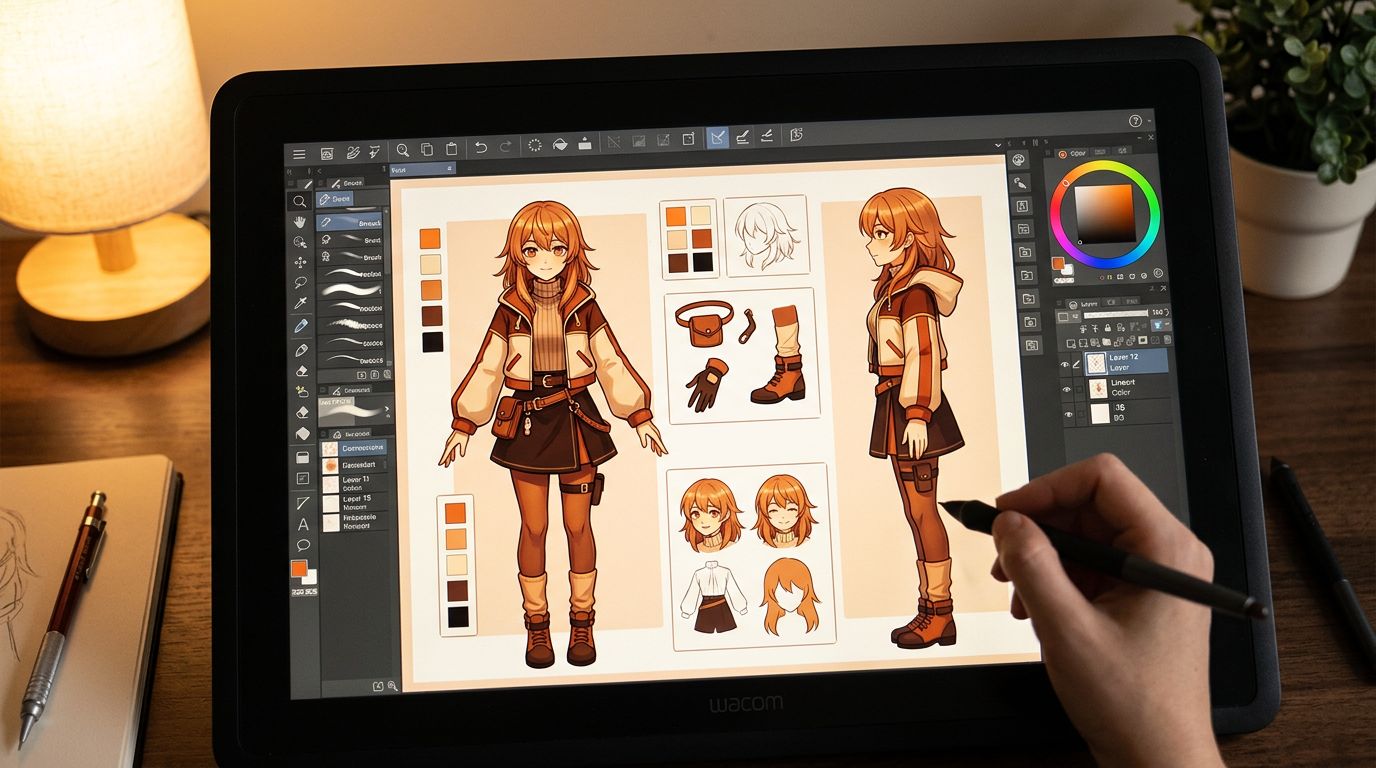
Before you generate a single panel, you need three things locked: a character sheet for every named character, a defined art style, and a scene-by-scene script. Skipping any of these is the number-one reason first episodes fall apart visually. Spend 30 minutes on setup and you save hours of regeneration later.
Step 1: Write a One-Page Script
A webtoon episode is typically 10–20 panels. Write one sentence per panel describing what the reader sees. Don't write dialogue yet—focus on action and setting.
Example script for a 10-panel opening episode:
- Exterior shot, rain-soaked city street at night, neon signs reflected in puddles
- Close-up of worn sneakers splashing through a puddle, running fast
- Medium shot of MIRA (19, short black hair, red hoodie) sprinting down an alley
- Wide shot, Mira skids to a stop in front of a locked gate
- Close-up of Mira's face, breathing hard, eyes wide
- Over-the-shoulder shot: a shadowy figure at the far end of the alley
- Close-up of the figure's hand, holding a glowing blue key
- Medium shot, Mira takes a step forward, hand outstretched
- Close-up of the key exchanging hands, blue light spilling across both faces
- Wide shot, the gate swings open, light pouring through
That script took about ten minutes to write. It's specific enough to generate consistent panels. Notice every panel has a clear shot type (close-up, wide, medium) and a clear subject.
Step 2: Lock Your Characters Before Generating
This is the step most beginners skip. Open your AI webtoon tool and create a character profile for Mira before you touch the episode panels. Upload or generate a reference image. Set her physical description: short black hair, 19 years old, red hoodie, medium build. Save that profile.
Why this matters: if you don't lock the character, the AI treats every panel as a fresh generation. Mira might have long hair in panel 3 and a different face shape in panel 7. Readers notice immediately, and it breaks immersion.
Step 3: Set Your Art Style Once
Choose a style that fits your story and stick to it for the whole episode. Common beginner-friendly styles: clean line webtoon (think True Beauty aesthetic), soft manga, or flat graphic novel. Don't mix styles between panels—it reads as unfinished.
Step 4: Generate Panel by Panel
Paste each script line as a panel prompt. Review each output before moving to the next. If a panel is off—wrong expression, wrong framing—regenerate that single panel. You don't need to restart the episode. Most beginner webtoon tools let you regenerate one panel in isolation.
Step 5: Add Dialogue and Export
Once all panels are approved, add speech bubbles and captions. Export as a vertical PNG strip. Most platforms accept a single long image per episode or a sequence of numbered panels.
Worked Example: A Romance Scene That Went Wrong (and How to Fix It)
Vague prompts produce generic panels. A prompt like "two characters look at each other romantically" gives the AI almost nothing to work with. The fix is specificity: name the characters, describe their exact positions, and state the emotional beat you need the panel to carry.
Here's a real failure case. A beginner was building a romance webtoon and wrote this prompt for a key panel:
"Two characters standing close together, romantic moment"
Result: two generic figures with no resemblance to the locked characters, standing stiffly in an undefined space.
Revised prompt:
"Medium shot, MIRA (short black hair, red hoodie) and LEON (tall, silver hair, dark jacket) standing face to face in a rain-soaked alley, Mira looking up at Leon, soft neon light from the left, close enough that their breath is visible in the cold air, emotional tension"
Result: a panel that matched the locked characters, used the established setting, and communicated the emotional beat clearly.
The lesson: treat each panel prompt like a film direction note. Camera angle, subject names, setting, lighting, and emotional tone—all in one sentence.
The Failure Case Beginners Hit Most Often
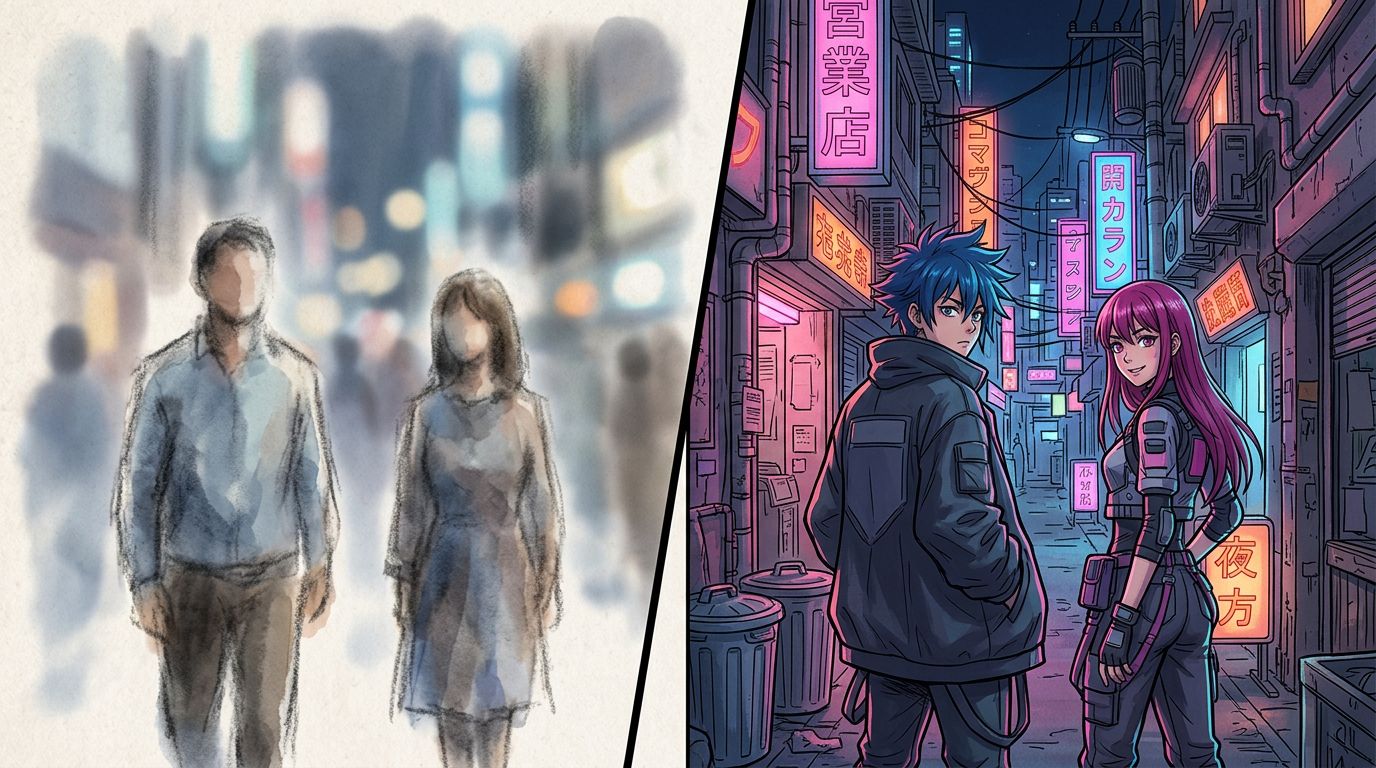
Character drift is the most common failure in no-skill webtoon creation. Even with a locked character profile, AI tools can drift on hair length, eye color, or facial structure across a long episode. The fix is to regenerate drifted panels using the original reference image explicitly attached to the prompt, not just the saved profile name.
Here's what character drift looks like in practice: you generate panels 1–7 cleanly. By panel 12, Mira's hair is suddenly longer and her hoodie is a different shade. The tool didn't "forget" her—it weighted other visual elements in the prompt more heavily.
Fix it by:
- Opening the original character reference image
- Attaching it directly to the panel 12 prompt (not relying on the saved profile name alone)
- Adding a physical anchor phrase to the prompt: "Mira, short black hair to chin, red zip-up hoodie, same as reference"
This is a known limitation of current AI webtoon tools. It's not a dealbreaker—it's a workflow step. Budget time for a consistency pass after you finish generating all panels.
Choosing the Right Beginner Webtoon Tool for Your Workflow
The right easy webtoon maker for a beginner depends on one question: do you already have a written story, or are you starting from scratch? If you have a story—a Wattpad chapter, a novel draft, a detailed outline—you want a tool built around text-to-comic conversion. If you're starting from scratch, you want a tool with guided scripting and character setup built in.
For beginners adapting an existing story, TabStory's AI webtoon generator is built around the chapter-as-source-of-truth workflow: paste your chapter text, lock your cast, and generate panels that reference both the text and the character profiles. You can regenerate one panel without touching the rest. That's a meaningful workflow difference when you're on chapter 8 and need to fix one scene.
If you're working from a novel or longer text, the novel to comic workflow handles the adaptation step—breaking prose into panel-ready scene descriptions before generation starts.
For a broader look at what's available, Best AI Webtoon Makers in 2026: Vertical Storytelling, Automated covers the current tool landscape with workflow comparisons.
What to Do After Your First Episode
After publishing episode one, the most important thing is not perfection—it's establishing a repeatable workflow. Document your character profiles, your art style settings, and your panel prompt format. That documentation becomes your production bible for every episode that follows.
Here's a simple post-episode checklist:
- Save all character reference images in a dedicated folder
- Write down your art style settings (style name, any custom parameters)
- Keep your panel prompt template (shot type + character names + setting + lighting + emotion)
- Note which panels needed regeneration and why—patterns will emerge
Consistency across episodes matters more than any single panel being perfect. Readers follow webtoons for story and character. A slightly imperfect panel in a consistent visual world is far less jarring than a technically perfect panel that looks like it belongs in a different comic.
For a deeper look at the full production process, How to Make a Webtoon in 2026: A Step-by-Step Guide for Beginners covers scripting, pacing, and platform publishing in detail.
FAQ
Can a complete beginner make a webtoon with AI?
Yes. AI webtoon tools handle the drawing side. You write a scene description or paste a script, and the tool generates vertical panels. You need zero drawing experience. The main skill you bring is storytelling—knowing what happens in each scene.
How long does it take to publish a first webtoon episode with AI?
Most beginners finish a 10–15 panel first episode in one to three days. Day one is scripting and character setup. Day two is generating and reviewing panels. Day three is light editing and export. If your script is already written, you can compress that to a single afternoon.
What is the biggest mistake beginners make with AI webtoon tools?
Skipping character locking. If you generate each panel without saving a consistent character reference, your protagonist looks like a different person in every scene. Always lock your cast before generating story panels—most beginner webtoon tools have a character sheet or reference image feature for exactly this reason.
Your first episode is closer than you think. Write a 10-panel script tonight, lock your characters, and start generating tomorrow. When you're ready to build, TabStory's AI webtoon generator is where to start—paste your script, lock your cast, and publish your first episode this week.