Getting your webtoon canvas size wrong wastes hours. Upload an image that's too wide, too tall, or the wrong resolution and the platform either rejects it or compresses it into a blurry mess. This guide gives you the exact numbers for 2026 — width, height, resolution, and file size — plus how those specs translate into an AI-assisted workflow.
Webtoon Canvas Size: The Core Specs You Need
The standard webtoon canvas size is 800 px wide at 72 dpi. Episode images must be at least 100 px tall and no taller than 1,280 px per file, with each image under 2 MB. Most creators stack multiple 800 × 1,280 px panels into one scrollable episode.
Here's a quick reference table:
| Spec | WEBTOON Canvas | Tapas | Recommended for AI workflows |
|---|---|---|---|
| Width | 800 px | 690–800 px | 800 px |
| Max height per image | 1,280 px | No hard limit | 1,280 px |
| Resolution | 72 dpi | 72–96 dpi | 72 dpi |
| Max file size per image | 2 MB | 5 MB | ≤1.5 MB (safe buffer) |
| Color mode | RGB | RGB | RGB |
| Accepted formats | JPG, PNG | JPG, PNG | JPG (smaller), PNG (sharper lines) |
A few things worth noting:
- Width is fixed. WEBTOON Canvas enforces 800 px. Going wider forces a crop or a rejection.
- Height is flexible per image, but capped. You can upload many images per episode. Each one maxes out at 1,280 px tall.
- 72 dpi is screen resolution. Don't work at 300 dpi and scale down — you'll change the pixel count and break your layout.
- File size matters more than you think. A PNG at 800 × 1,280 px can easily hit 3–4 MB if you're not careful. Export as JPG at 85–90% quality to stay under 2 MB.
Webtoon Dimensions for Vertical Scrolling: Why the Ratio Matters
Webtoon dimensions are portrait-oriented by design. The 800 × 1,280 px ratio (roughly 5:8) matches most phone screens. Panels taller than the viewport force readers to scroll mid-panel, which breaks pacing. Keep action beats inside a single viewport height.
Vertical scrolling comics are read on phones. The average smartphone viewport in 2026 is roughly 390 × 844 px at 2× pixel density, which maps to about 780 × 1,688 CSS pixels. At 800 px wide, your webtoon fills the screen edge to edge.
Practical layout rules:
- One emotional beat per 1,280 px block. A reveal, a reaction, a cliffhanger — each gets its own scroll unit.
- Don't center dialogue in the middle of a tall panel. Readers scroll past it before they read it.
- Use horizontal gutters (thin white or colored strips) between panels. They signal a pause without breaking the scroll.
- Keep text boxes at least 40 px from the left and right edges. WEBTOON's mobile UI overlays controls near the edges on some devices.
Webtoon Image Size and File Management: A Worked Example
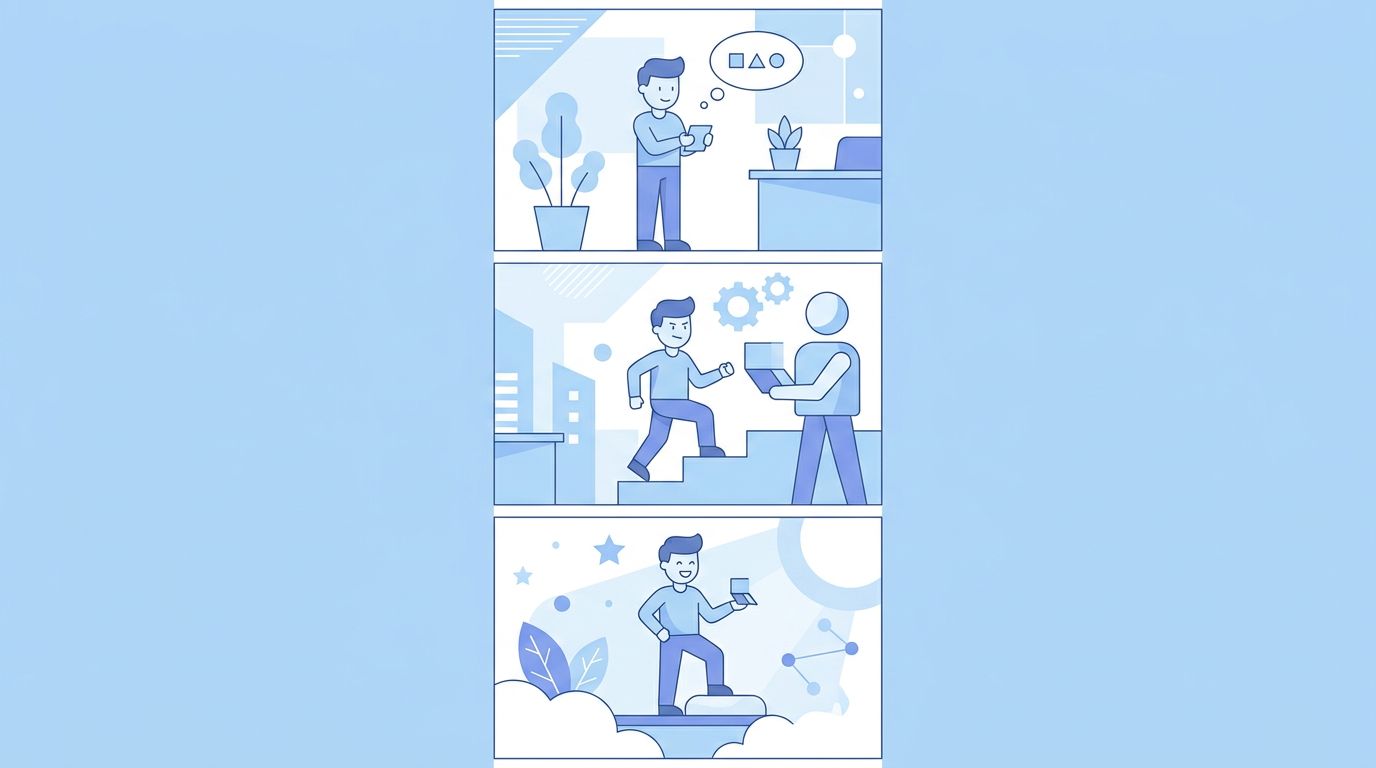
Managing webtoon image size means planning your episode as a sequence of files before you draw a single panel. A 10-image episode at 800 × 1,280 px each gives you 12,800 px of total scroll height — about 4–5 minutes of reading time at a comfortable pace.
Here's a concrete example. Say you're building Episode 3 of a fantasy series. The episode has three scenes: a marketplace argument, a chase through alleys, and a rooftop standoff.
Before (common mistake):
- One giant canvas: 800 × 12,800 px
- Exported as a single PNG: 8.7 MB
- Result: WEBTOON Canvas rejects the upload. The platform requires individual images, each under 2 MB.
After (correct approach):
- 10 separate canvases, each 800 × 1,280 px
- Scene 1 (marketplace): images 1–3
- Scene 2 (chase): images 4–7
- Scene 3 (rooftop): images 8–10
- Each exported as JPG at 88% quality: 180–420 KB per file
- Total episode size: ~3.2 MB across 10 files
- Upload: accepted immediately
If you use an AI webtoon generator, this file management is handled automatically. TabStory outputs each panel as a separate image at the correct dimensions, so you're not manually slicing a giant canvas.
Vertical Comic Resolution: What 72 dpi Actually Means in Practice
Vertical comic resolution at 72 dpi means one pixel equals one pixel on screen. There's no print scaling involved. If your art looks sharp at 100% zoom in your editor, it will look sharp on WEBTOON. Working at higher dpi doesn't improve screen quality — it just bloats file size.
This trips up artists coming from print or illustration backgrounds. Here's the mental shift:
- Print: 300 dpi at 3 inches wide = 900 px. Looks tiny on screen.
- Webtoon: 72 dpi at 11.1 inches wide = 800 px. Fills the phone screen perfectly.
If you're drawing in Procreate, Clip Studio Paint, or Photoshop, set your document to 800 px × 1,280 px at 72 dpi from the start. Don't work at 1,600 × 2,560 px and scale down — you'll spend extra time rendering detail that disappears at final size, and your file sizes will be harder to control.
One exception: line art. If your style relies on very thin lines (0.5–1 px), working at 2× (1,600 × 2,560 px) and scaling down can sharpen edges. But test it first. For most styles, 800 × 1,280 px native is cleaner.
Webtoon Episode File Size: Limits, Compression, and What Still Breaks
WEBTOON Canvas caps each image at 2 MB and each episode at 20 images. That gives you a practical ceiling of about 40 MB per episode if every image hits the limit — but in reality, well-compressed JPGs keep episodes under 10 MB total.
Compression settings that work
- JPG at 85–90%: Best for painted or photographic-style art. Invisible quality loss, 60–70% smaller than PNG.
- PNG-8 (indexed color): Good for flat-color or cel-shaded styles. Smaller than PNG-24, no JPG artifacts.
- PNG-24: Use only when you need transparency or very fine linework. Watch the file size.
What still breaks in 2026
Even with correct specs, a few failure cases persist:
- Gradient backgrounds in JPG. Heavy gradients create visible banding artifacts at 85% quality. Either use PNG or add subtle noise to the gradient before export.
- Very dark panels. Dark scenes compress poorly in JPG — shadow areas get blocky. Bump quality to 92% for night scenes.
- AI-generated images with fine texture. AI art often has high-frequency detail (fabric, hair, foliage) that JPG compression destroys. Test at 90% quality and zoom in before uploading.
- Panels with embedded text. Text rendered inside the image (not as a separate layer) gets blurry at JPG compression. Keep dialogue as a separate overlay layer until final export.
Canvas Size for AI-Generated Webtoons
AI webtoon tools generate images at a fixed output resolution. The key is matching that output to the 800 px webtoon standard before upload. Most AI tools output at 512–1,024 px wide — you may need to resize, but never upscale beyond 2× without checking for blur.
If you're using an AI workflow, here's what to check:
- Output width: Does the tool output at 800 px, or do you need to resize? Resizing down (from 1,024 to 800 px) is fine. Resizing up (from 512 to 800 px) can soften detail.
- Aspect ratio: AI models often default to square (1:1) or landscape (16:9). Force a portrait ratio — 5:8 or 9:16 — in your prompt or settings.
- Character consistency across panels: This is the hard part. A character who looks different in panel 3 vs. panel 7 breaks immersion. Tools that lock a character reference (a "locked cast") solve this better than one-shot image generators.
TabStory's approach uses your story text as the source of truth for each chapter. You write the scene, it generates panels at consistent dimensions with the same character designs across the episode. If one panel doesn't land, you regenerate just that panel — not the whole episode. That's a meaningful workflow difference compared to generating images one by one in a general-purpose image tool.
For a full walkthrough of building an episode from scratch, see How to Make a Webtoon in 2026: A Step-by-Step Guide for Beginners. For pacing decisions that affect how many panels you need per episode, Webtoon Episode Structure: Length, Pacing, and Cliffhangers That Work covers the editorial side.
Quick Spec Checklist Before You Upload
- Width: exactly 800 px
- Height: 100–1,280 px per image
- Color mode: RGB (not CMYK, not Grayscale unless intentional)
- Resolution: 72 dpi
- File format: JPG or PNG
- File size: under 2 MB per image
- Max images per episode: 20
- No embedded ICC profiles that shift colors on upload
- Text legible at 800 px width on a 390 px CSS-wide phone screen
FAQ
What is the correct webtoon canvas size for WEBTOON Canvas in 2026?
The correct webtoon canvas size is 800 px wide × up to 1,280 px tall per image, at 72 dpi, in RGB color mode. Each image must be under 2 MB, and you can upload up to 20 images per episode. Most creators use 800 × 1,280 px as their standard canvas and stack multiple images to build a full scrollable episode.
Can I use a taller canvas for webtoon panels?
Yes, but with limits. WEBTOON Canvas accepts images as short as 100 px tall, but caps each image at 1,280 px tall. If your scene needs more vertical space, split it across two or more images. Some creators work on a single tall canvas (e.g., 800 × 6,400 px) in their drawing app and then slice it into 1,280 px segments before upload.
What file format is best for webtoon image size and quality?
JPG at 85–90% quality works best for most art styles — it keeps file sizes well under the 2 MB limit with minimal visible quality loss. Use PNG-24 only when you need transparency or have very fine linework that JPG compression would blur. Avoid TIFF and PSD — WEBTOON Canvas doesn't accept them.