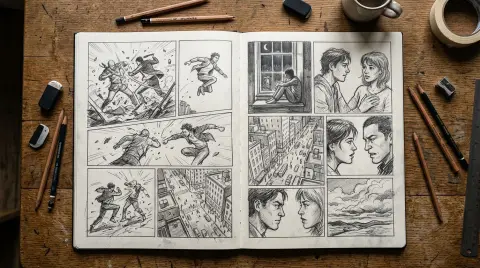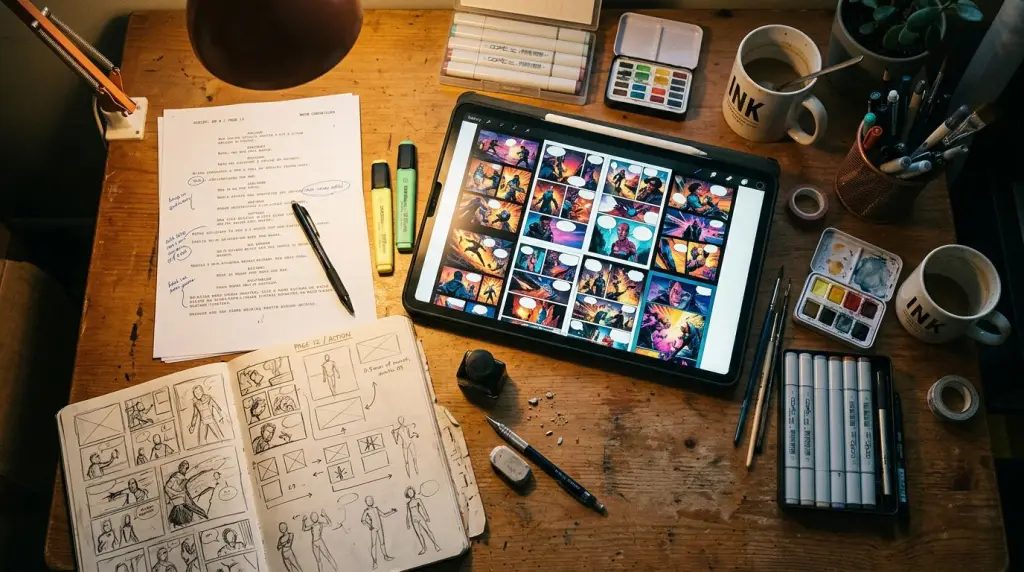
Building an AI storyboard from script used to mean hours of manual thumbnailing before a single panel got drawn. In 2026, the pipeline is faster — but only if you set it up correctly. This walkthrough covers every step: how to format your script, how storyboard automation actually works inside a comic-focused tool, and where the process still breaks down.
What Does "Script to Storyboard" Actually Mean for Comic Creators?
Script to storyboard means converting written scene descriptions, dialogue, and action lines into a sequence of visual panels with camera framing, character placement, and pacing already decided. For comic creators, this is the bridge between writing and drawing — and AI can now handle a large part of it automatically.
In film production, a storyboard is pre-visualization. In comics and webtoons, it serves the same purpose: you lock down composition before you commit to final art. The difference is that comic storyboards also carry panel borders, reading flow, and page/strip rhythm.
When you use a screenplay to storyboard AI tool, the system reads your scene headings, action lines, and character cues, then proposes panel compositions. The best tools go further — they keep your characters visually consistent across every panel, which is the hardest part to do manually.
If you want a deeper look at the manual side of this process first, How to Storyboard a Comic: From Rough Thumbnails to Final Panels is worth reading before you automate anything.
How to Format Your Script for AI Storyboard Generation
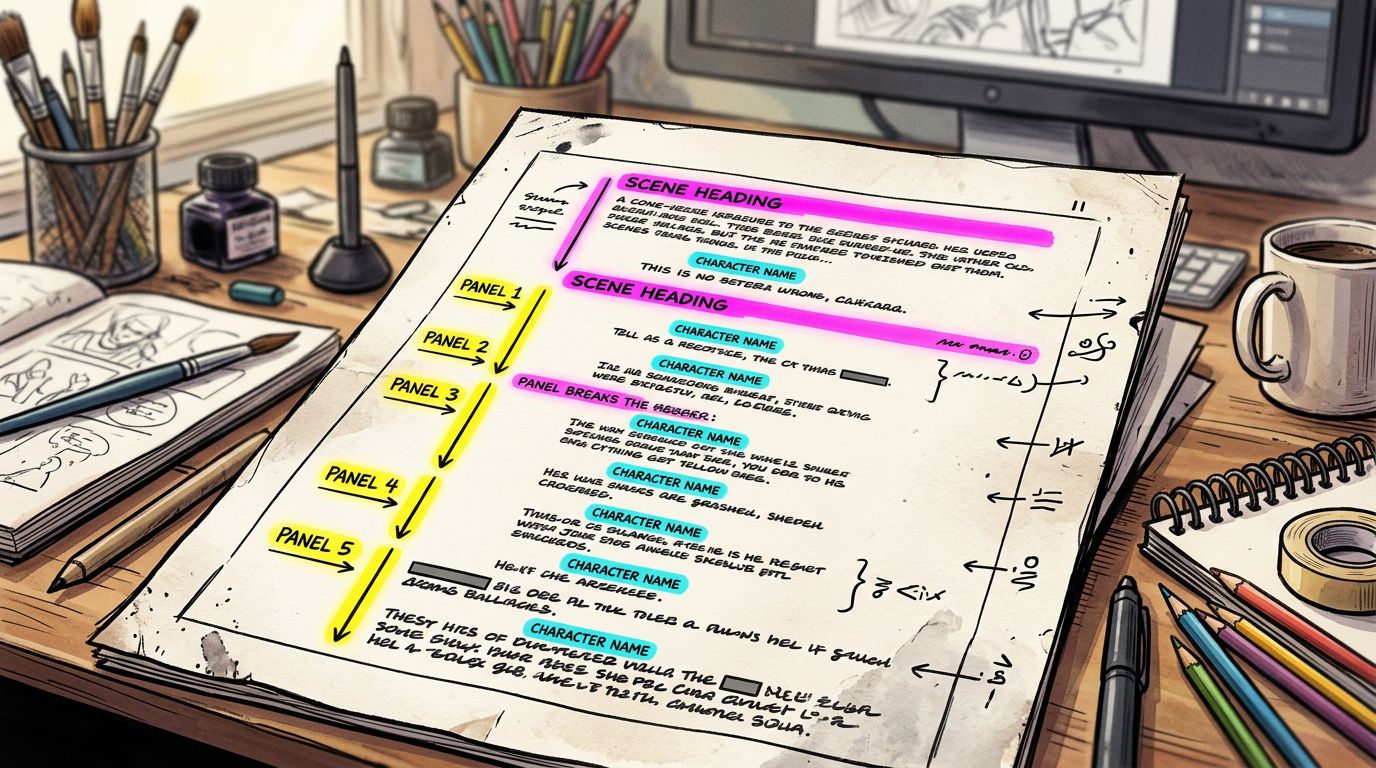
Format your script with clear scene headings, one action per beat, and explicit character names before every dialogue line. AI storyboard tools parse structure, not intent — the cleaner your script, the fewer panels you need to regenerate manually.
Here is what works:
- Scene headings — Use INT./EXT. format or a simple location label. Example:
INT. ROOFTOP CAFÉ — NIGHT - Action lines — One visual beat per paragraph. If two things happen, split them into two paragraphs.
- Character cues — Name the character before every action that involves them. Don't write "she turns"; write "MIRA turns."
- Emotion tags — Add a parenthetical like
(panicked)or(cold, controlled)after a character name. Most storyboard automation tools read these as expression cues. - Panel break markers — Some tools let you insert
[PANEL BREAK]or---to force a new panel. Use them at every tonal shift.
What you should strip out before uploading:
- Screenplay formatting codes meant for Final Draft (scene numbers, revision marks)
- Long prose descriptions that describe backstory instead of visible action
- Nested parentheticals that contradict each other
The AI Storyboard From Script Workflow, Step by Step
The core workflow is: paste or upload your formatted script, define your character cast with reference visuals, let the AI propose panel sequences, then review and regenerate individual panels that miss the mark. The whole process runs in minutes, not days.
Here is the step-by-step breakdown using a comic-focused tool:
Step 1 — Lock Your Cast First
Before you generate a single panel, build your character profiles. Upload or describe each character: hair color, build, costume, facial features. This becomes the visual anchor the AI references on every generation pass. Skip this step and you get a different-looking protagonist in every panel.
This is where comic-focused tools differ from general image generators. A tool like TabStory's AI storyboard generator keeps a locked cast attached to the project, so character consistency carries across chapters — not just across a single scene.
Step 2 — Upload Your Script
Paste your formatted script or upload it as a plain text or PDF file. The tool segments it into beats. Review the segmentation before generating art — if the AI merged two beats into one panel, split them manually.
Step 3 — Generate the Panel Sequence
Run the first generation pass. You will get a rough storyboard: panel compositions, rough framing, character positions, and expression cues pulled from your action lines and emotion tags.
Do not try to make every panel perfect on the first pass. Treat this output as a digital thumbnail layer — the equivalent of rough pencil sketches.
Step 4 — Regenerate Problem Panels One at a Time
Identify panels that missed the composition or expression. Regenerate only those panels. Changing one panel should not affect the others — if your tool re-renders the whole sequence every time, that is a workflow problem worth knowing before you commit to it.
Step 5 — Add Dialogue and Panel Flow
Drop in speech bubbles, captions, and sound effects. Adjust panel borders and reading order for your target format — vertical scroll for webtoon, page-spread for manga, or horizontal strip for classic comic.
If you are adapting a longer text source, the process scales the same way. How to Turn a Novel Into a Webtoon: The Complete Adaptation Guide covers how to break prose chapters into scriptable beats before you hit this workflow.
Worked Example: A Three-Panel Action Beat
Here is a before/after showing how a raw script beat becomes a storyboard panel sequence.
Raw script input:
INT. SUBWAY TUNNEL — NIGHT

KAI (panicked) sprints toward the closing blast door.

The door slams shut three feet in front of him.

KAI (defeated) presses both palms against the cold metal.
AI storyboard output — three panels:
- Panel 1 — Low-angle wide shot. KAI runs toward camera. Blast door visible in background, half-closed. Motion blur on legs. Expression: wide eyes, open mouth.
- Panel 2 — Full shot, KAI's POV. Door fills the frame, slamming shut. Speed lines radiating from the center seam.
- Panel 3 — Medium close-up. KAI's hands flat on the door surface. Head bowed. Expression: eyes closed, jaw tight.
This is what good storyboard automation produces from a clean script. Three beats in the text became three distinct compositions with clear camera logic.
What Still Breaks: One Honest Failure Case
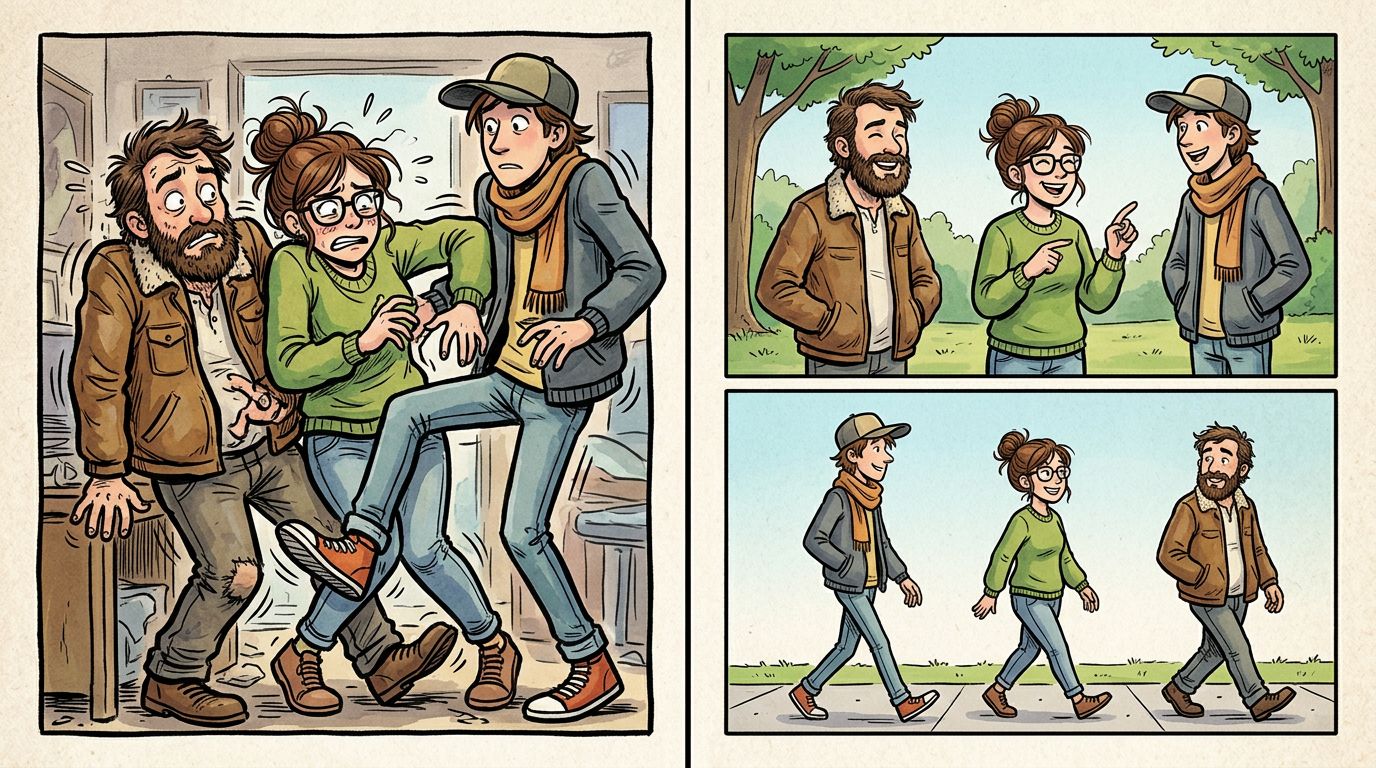
AI storyboard tools still struggle with multi-character spatial relationships. If your script has three or more characters interacting in the same panel — especially with physical contact or overlapping bodies — the AI frequently misplaces characters, merges faces, or ignores blocking entirely.
Example: A scene where CHARACTER A grabs CHARACTER B's wrist while CHARACTER C watches from the doorway. The AI might:
- Render only two characters instead of three
- Swap A and B's positions relative to the script description
- Ignore the doorway entirely and place C in the foreground
The fix is to break complex blocking into sequential panels. Instead of one panel with all three characters, write two panels: one showing A grabbing B's wrist (tight two-shot), one cutting to C's reaction at the door. This also tends to produce better pacing.
Similarly, storyboard generator from text tools still handle abstract or metaphorical action lines poorly. "The weight of the world settled on her shoulders" will not produce a useful panel. Translate metaphor into visible action before you upload.
Script to Storyboard for Different Comic Formats
The same script can generate different storyboard layouts depending on your target format. Webtoon uses vertical panels optimized for mobile scroll. Manga uses page spreads with right-to-left reading flow. Western comics use grid-based page layouts. Your storyboard automation tool should let you choose the format before generating.
- Webtoon — Tall vertical panels, minimal page breaks, optimized for thumb-scroll. Emotional beats get more vertical real estate.
- Manga — Right-to-left reading order, varied panel sizes, frequent use of full-page spreads for impact moments.
- Western comic — Grid-based, typically 3-6 panels per page, gutters between panels.
If you are new to the manga format specifically, How to Make Manga Without Drawing Skills (2026 Workflow) covers the format conventions you need to know before scripting.
For a full end-to-end walkthrough that goes beyond storyboarding into final panel production, How to Make a Comic with AI in 2026 (Step-by-Step Guide) picks up where this article leaves off.
FAQ
Can I use a raw screenplay file to generate a comic storyboard?
Yes, but clean it first. Strip scene numbers, revision marks, and any action lines that describe backstory rather than visible action. The AI reads structure and visual cues — not subtext. A formatted screenplay works well once you add emotion tags and explicit character names to every beat.
How do I keep characters looking consistent across storyboard panels?
Build a locked character profile before you generate anything. Include physical descriptors, costume details, and a reference image if the tool supports it. Tools that attach character profiles at the project level — rather than re-prompting per panel — produce far more consistent results across long scripts.
What is the difference between a storyboard generator from text and a general AI image tool?
A storyboard generator from text reads narrative structure and converts it into sequential panel compositions with consistent characters. A general AI image tool generates one image per prompt with no memory of previous outputs. For comics, the sequential consistency is what matters — a general image tool requires manual re-prompting and character matching for every single panel.
Ready to run your script through the process? Paste your first scene into TabStory's AI storyboard generator and get a panel sequence back in minutes — no drawing required.